Each LED animation on the Phase Essential Remotes and Receiver has a specific meaning. Here is what to expect at every stage.
1. Power and connection
Two small LEDs on the back of the Receiver indicate its status:
- Lightning icon: the Receiver is correctly powered.
- Connect icon: the Receiver is communicating with your computer. It blinks when Phase Manager or a DJ software is open.

2. Charging
When the Remotes are placed on the powered Receiver, they charge automatically. The Remote LEDs animate upward (as if filling up) and the Receiver dots pulse outward.

When fully charged, all animations stop and the LEDs turn solid.

3. Linking the Remotes
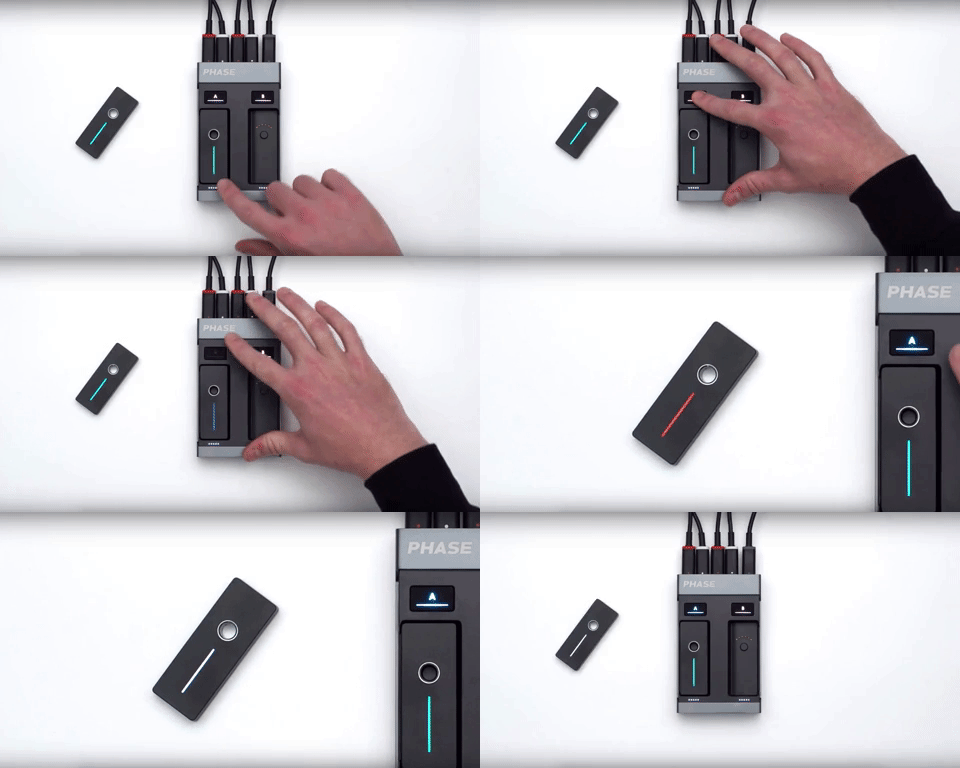
Long-press a setup button to link a Remote. The LED strip flashes during the process. When the LED strip color and the setup button color match, the Remote is linked to that deck.

Once taken out of the Receiver, the setup button turns white while the LED strip keeps its color. This is normal.

4. Disconnected Remote
If a Remote is unlinked (for example by linking another Remote to the same deck), its LED strip briefly flashes red then turns white. A white LED means the Remote is not linked to any Receiver.
5. Calibration
When taken out of the Receiver, the Remotes calibrate their internal sensors automatically. Place them on a flat, still surface and wait. The LED strip animates up and down during calibration. When the LEDs turn solid, the Remotes are ready to use.

6. Battery level
The LED dots below each dock on the Receiver show the battery level of the corresponding Remote. The fewer dots lit, the lower the battery.

7. Pause mode
Press a setup button once to activate pause mode. The Remote LED strip and setup button both flash. The A or B LED on the back of the Receiver also flashes to indicate that communication with that deck is suspended. Press the setup button again to disable pause mode.


8. Low battery
When a Remote's battery is running low, the bottom of its LED strip flashes red. Two dots on the Receiver also flash as a second warning. Time to charge.

9. Firmware update
After updating in Phase Manager, take the Remotes out of the Receiver to complete the firmware installation. Wait until the LEDs turn solid before using them. This may take a few seconds longer than usual.

Common Issues
The LED strip blinks red continuously
The Remote may not be charging correctly. Connect the Receiver directly to a wall outlet. If the issue persists, see the battery troubleshooting guide.
The LEDs keep animating after taking the Remotes out
The Remote may be stuck in calibration. Place it back in the Receiver, take it out again on a completely flat and still surface, and wait. See the calibration guide.
A Remote stays solid white
A white LED means the Remote is not linked to any Receiver. Long-press the A or B button on the Receiver to re-pair it. See the linking guide.
The LED strip and setup button show different colors
The Remote may not be properly linked. Redo the linking process.
The LEDs turn off completely
The battery may be empty. Place the Remote in the Receiver to charge before using it.
An animation doesn't look right?
The Phase team will help.
Was this article helpful?
That’s Great!
Thank you for your feedback
Sorry! We couldn't be helpful
Thank you for your feedback
Feedback sent
We appreciate your effort and will try to fix the article